
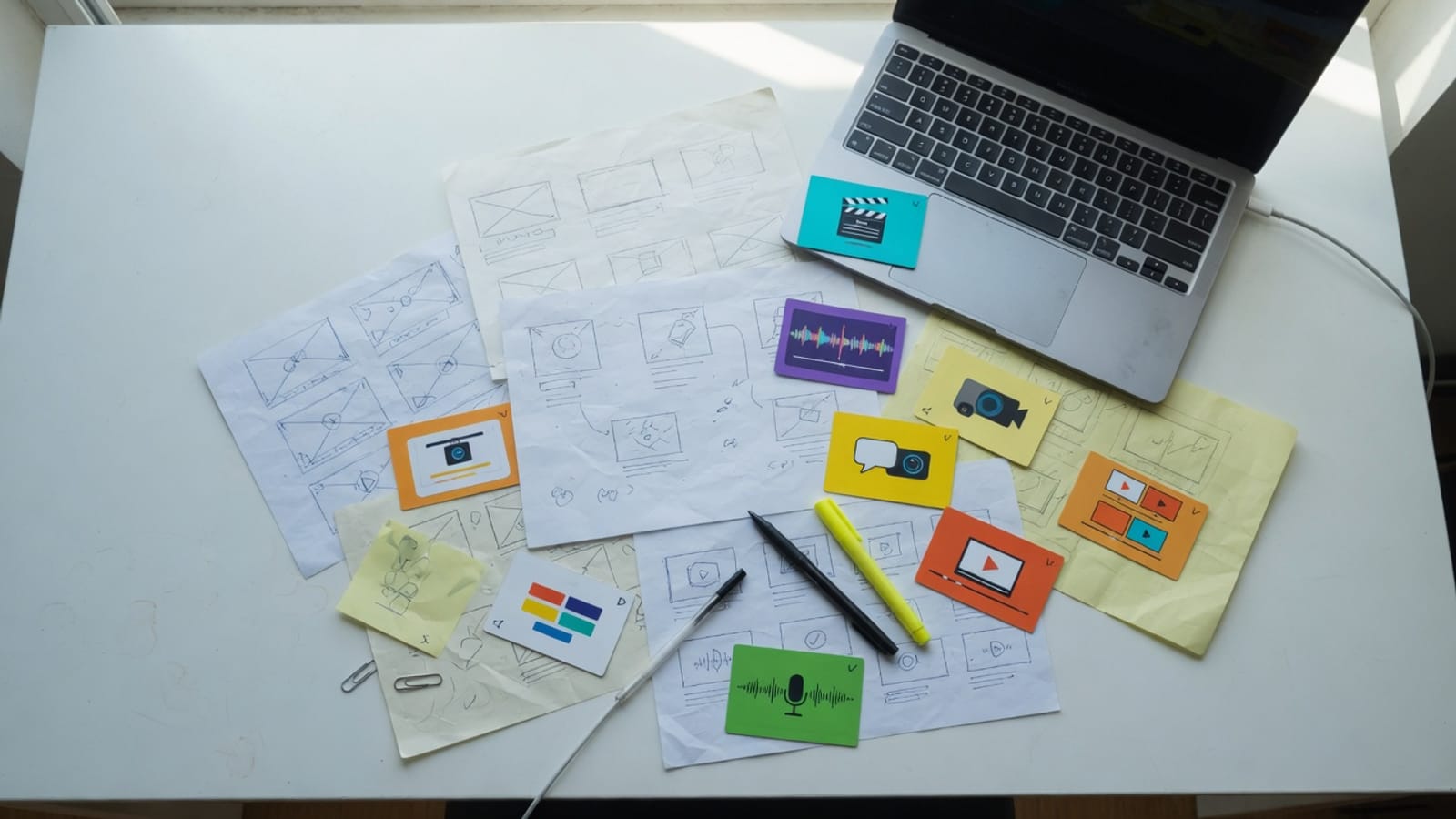
01
Pick the job
Trim, crop, resize, rotate, speed, mute, watermark or extract a frame — one operation per page.
Choose the operation that matches the problem: time, frame, orientation, sound, text, resolution or file size. Format converters live under Converters.
10 tools in this section · all processing stays on your device
01
Trim, crop, resize, rotate, speed, mute, watermark or extract a frame — one operation per page.
02
Files are not uploaded. Desktop Chrome or Edge is the safest place to run WebCodecs jobs.
03
Play the result in the app that rejected the original before you delete the master.
Online video tools for time: trim one continuous start-to-end range.
Online video tools for framing: use a centered crop for social ratios.
Online video tools for dimensions: resize the complete frame to 1080p, 720p or 480p.
Online video tools for orientation: rotate sideways footage by 90, 180 or 270 degrees.
Online video tools for timing: apply one speed from 0.5x to 2x.
Online video tools for sound: discard the complete audio track.
Online video tools for labeling: add a fixed lower-left text watermark.
Online video tools for still images: save one timestamp as PNG.
Online video tools for a small batch: queue separate 720p MP4 downloads.
Start with the part of the file that must change. Trim changes time. Crop removes edges and changes composition. Resize scales the complete frame. Rotate fixes orientation. Speed changes duration. Mute removes the audio track. Watermark draws your text into the image. Extract Frame saves one PNG. Bulk applies one 720p MP4 preset to several files. The homepage compressor is for a target in megabytes.
Choosing one focused video tool avoids extra re-encoding. If a clip only needs silence, do not run it through crop and resize first. If the requirement is “under 10MB,” use compression rather than hoping a resolution change lands on the exact size. Keep the original file, complete the smallest necessary operation, then verify the output in the app where it will be used.
CompressVideo uses browser media APIs and Mediabunny to inspect, decode, process, encode and package supported files. The selected media is not uploaded to an encoding server. Work begins after the required code loads in the tab, and the result is offered as a local download.
Local processing removes upload time and keeps private drafts on the device, but it does not remove physical limits. Codec support, memory, processor speed and browser behavior still matter. Desktop Chrome and Edge currently offer the safest WebCodecs coverage. Large 4K sources, professional camera codecs and long timelines may be better suited to a desktop editor.
Editing operations solve different constraints. A centered 9:16 crop can prepare a landscape shot for a vertical layout, but it discards the sides. A 720p resize keeps the full composition but reduces pixel dimensions. Compression changes bitrate to pursue a file-size target. Trimming reduces duration, which also gives the remaining seconds more room inside the same target size.
A good sequence is trim first, then crop or resize if necessary, then compress once. Mute before final compression when audio is not needed. Every separate video re-encode can introduce another generation of loss, so a desktop editor is preferable when several visual changes must be combined into one polished export.
Files selected in these tools remain in the browser media path. No cloud-drive password is requested, and the site does not provide a YouTube, TikTok or remote-URL downloader. Process only media you own or are authorized to edit. Analytics must never include file bytes, frames, audio, file names or exported media.
“No upload” is not the same as “works with every file.” MP4, MOV and WebM using browser-friendly codecs are the most dependable inputs. MKV and professional MOV files can hold codecs that a desktop player supports but the browser does not. Error messages should be treated as capability feedback, not an invitation to retry the same unsupported codec indefinitely.
Save the source master first. Check duration, dimensions, orientation, audio and the real destination requirement. Select the matching tool and use conservative settings. Keep the tab open, avoid running several encodes at once, and allow the browser download to finish.
Afterward, open the result in a second player. Check the beginning and end, small text, fast motion, audio synchronization, orientation and extension. For an important handoff, also test the file inside the target messaging app, slide deck, website or review system. A successful download alone does not prove that the destination accepts the output.
Yes. The listed tools are free to use and do not require an account or put the finished download behind a payment prompt.
No. Supported media is processed through browser APIs on your device rather than an encoding upload server.
Crop removes part of the frame. Resize preserves the full composition while changing its pixel dimensions.
Trim first when unused seconds can be removed. A shorter duration needs less data at the same visual quality.
No. These tools accept local files only and do not download third-party media URLs.
Use the compressor on the homepage and enter a 10MB Custom target. Resize alone cannot guarantee an exact byte size.
Desktop players ship more software decoders. Browser tools can only use formats and codecs exposed to the browser media stack.
Some workflows require separate tools. For multiple polished edits in one generation, a desktop editor is the better choice.