
One rate for the file
0.5x, 1.5x and 2x cover slow review and faster walkthroughs. Audio pitch follows the speed path the encoder supports.
Choose 0.5x to 2x and export a new timed MP4.
Why this speed tool
Change video speed applies one rate from 0.5x to 2x across the whole clip. It is for demos and slow-motion moments, not a curve editor.
0.5x, 1.5x and 2x cover slow review and faster walkthroughs. Audio pitch follows the speed path the encoder supports.
A 2x export is half as long. Compress video after if a messenger still rejects the file.
The file is processed in this tab. There is no encoding server, account wall, or forced watermark on the download.
Keep the tab open until the file is ready, then play the result before deleting the source master.
How to change video speed
Video sample timestamps and durations are divided by the selected speed during conversion. The control ranges from 0.5x to 2x in 0.1 increments. Start with the original file instead of a copy that has already been re-encoded. Follow the steps below, keep the tab open while progress is moving, and play the downloaded result before deleting the source. This change video speed workflow does not accept a remote video URL and does not fetch media from YouTube, TikTok, cloud drives, or social accounts.
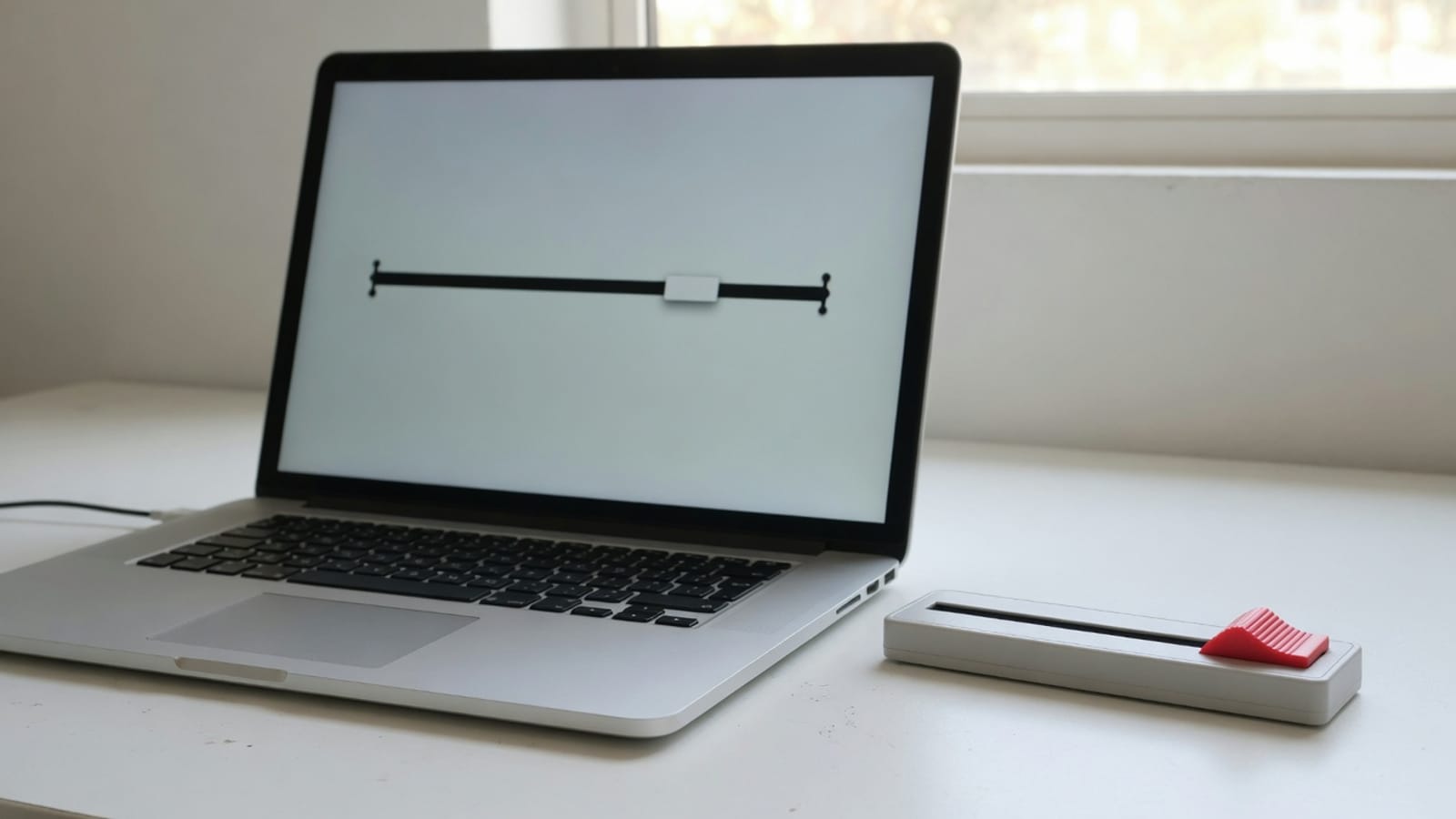
Step 01
Select the local video.

Step 02
Choose a speed between 0.5x and 2x.

Step 03
Check duration, motion, audio pitch and synchronization.
What it is
The speed tool changes playback timing for a complete local clip. Values below 1x make the result longer; values above 1x make it shorter. speed up video online on this page means selecting a file you already have permission to use, completing the job locally, and downloading an MP4 with retimed video samples. Video sample timestamps and durations are divided by the selected speed during conversion. The control ranges from 0.5x to 2x in 0.1 increments.
Shorten tutorials: Use a moderate increase when pauses make a demonstration drag. Review motion: Slow a short action to inspect it, without claiming new interpolated frames. Time-limited handoffs: Reduce total duration before a presentation or message. Creative drafts: Test pacing before doing a polished speed ramp in an editor. These are distinct reasons to change video speed; they are not promises that every codec or file size will work on every device.
When speed helps
Faster playback shortens tutorials. Slower playback helps a single motion. Change video speed will not beat-match a soundtrack.
2x
Use 2x when setup time is padding. Then trim video if the ends still drag.
0.5x
0.5x is for a gesture or UI click you need to show. Noise and shake become more visible.
Audio
This is not a time-stretch studio. If speech must stay natural, change video speed only on silent recordings.
Whole file
One factor for the entire clip. Split the file in a desktop editor if only the middle should be fast.
Use cases
Use a moderate increase when pauses make a demonstration drag.
Slow a short action to inspect it, without claiming new interpolated frames.
Reduce total duration before a presentation or message.
Test pacing before doing a polished speed ramp in an editor.
Quality
Retiming does not add frames for cinematic slow motion. A 0.5x export can look less fluid, while a 2x export removes display time between existing samples. Audio pitch preservation is not promised by this implementation. Verify synchronization and sound in the exported file, especially for speech or music. A local browser tool cannot make lossy re-encoding mathematically lossless. Keep the master file, compare motion and audio after export, and change one setting at a time if the first result is not suitable.
A simple browser speed changer is useful for a whole-clip adjustment. Editors with optical flow, pitch correction and speed ramps are better for polished slow motion. A desktop editor remains the better choice for multi-track timelines, frame-accurate finishing, color work, subtitles, or archival masters. CompressVideo is intended for a focused change video speed job where a quick local result matters more than a full editing suite.
Privacy
The media path is local by design. Your file becomes an in-memory or temporary on-device input for browser media APIs, then the finished an MP4 with retimed video samples is offered as a download. No account or cloud-drive password is requested. Close the tab after downloading when you use a shared computer, and follow workplace policy when a browser tool is not approved for confidential material.
Audio pitch preservation is not promised by this implementation. Verify synchronization and sound in the exported file, especially for speech or music. If the job fails, first try a current desktop Chrome or Edge build. Next, close memory-heavy tabs, shorten the source, or use a smaller resolution. An H.264/AAC MP4 is the most dependable fallback input for video workflows. A retry cannot fix a codec the browser cannot decode, so repeated failures with the same file usually require a compatible source export.
Practical notes
1. Select the local video. 2. Choose a speed between 0.5x and 2x. 3. Note the expected direction of duration change. 4. Export the retimed MP4. 5. Check duration, motion, audio pitch and synchronization. The output is an MP4 with retimed video samples. Review the file name, extension, playback, duration, dimensions, sound, and size before sharing it.
Video sample timestamps and durations are divided by the selected speed during conversion. The control ranges from 0.5x to 2x in 0.1 increments. Retiming does not add frames for cinematic slow motion. A 0.5x export can look less fluid, while a 2x export removes display time between existing samples. This is the practical difference between a real browser media tool and a page that only renames a file extension. The result is produced from decoded media samples or a validated conversion path, subject to the codec support exposed by the browser and device.
Return to the tool above when you are ready to change video speed. Use the source master, choose the smallest change that completes the task, and change video speed once. If the result is wrong, adjust the relevant setting instead of repeatedly re-encoding the same output. This keeps the change video speed workflow understandable and limits avoidable quality loss.
FAQ
Yes. Choose a value below 1x, down to 0.5x. The export becomes longer and may look less fluid because new motion frames are not synthesized.
Yes. Choose 2x and verify that the resulting duration is roughly half the source duration.
It is not guaranteed. Check voices and music in the download before publishing.
No. The current control applies one speed value to the whole clip.
Yes. The video speed adjustment workflow is free and does not require an account. Processing uses your browser and the download is available when the local job finishes.
No. The change video speed job reads the selected file with browser media APIs and does not send it to an encoding server. Analytics must not include file contents, names, frames, audio, or exported media.
Desktop Chrome or Edge is the safest choice for change video speed because codec support depends on WebCodecs. Audio pitch preservation is not promised by this implementation. Verify synchronization and sound in the exported file, especially for speech or music.
No. The change video speed output has no CompressVideo stamp, and the completed download is not placed behind a subscription prompt.
Mobile Safari or Chrome can open a file already on the device. Desktop Chrome or Edge is more reliable for long or high-resolution sources because WebCodecs coverage and memory are stronger there.
Audio pitch preservation is not promised by this implementation. Verify synchronization and sound in the exported file, especially for speech or music. Start with an H.264 MP4 when a special camera file fails. A remote URL or social-network link is not fetched.
Drop a local file, set the output, and download. Nothing is uploaded.
Change video speed