
GIFs are expensive
A looping GIF can dwarf an equivalent MP4. GIF to MP4 is the usual size win for memes and UI captures.
Turn a heavy animated image into a broadly playable MP4.
Why this converter
GIF to MP4 replaces an animated GIF with a real video file that is usually smaller and easier to post.
A looping GIF can dwarf an equivalent MP4. GIF to MP4 is the usual size win for memes and UI captures.
Source GIFs have no voice. The MP4 will not invent a soundtrack.
The file is processed in this tab. There is no encoding server, account wall, or forced watermark on the download.
Keep the tab open until the file is ready, then play the result before deleting the source master.
How to GIF to MP4
The GIF is accepted as local input and the media pipeline decodes its animation frames before encoding H.264 video into MP4. Start with the original file instead of a copy that has already been re-encoded. Follow the steps below, keep the tab open while progress is moving, and play the downloaded result before deleting the source. This GIF to MP4 workflow does not accept a remote video URL and does not fetch media from YouTube, TikTok, cloud drives, or social accounts.
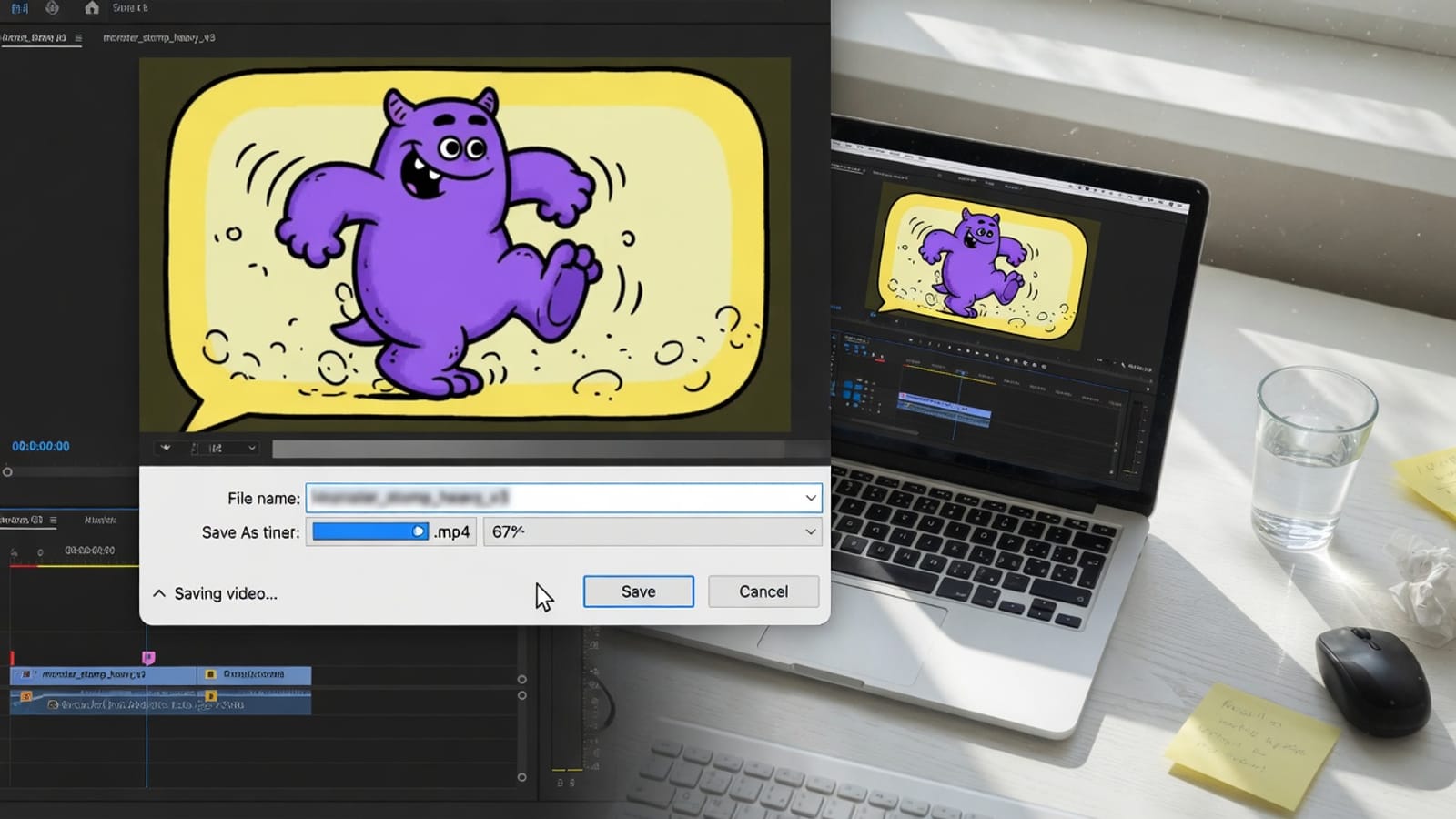
Step 01
Select an animated GIF, not a renamed static image.
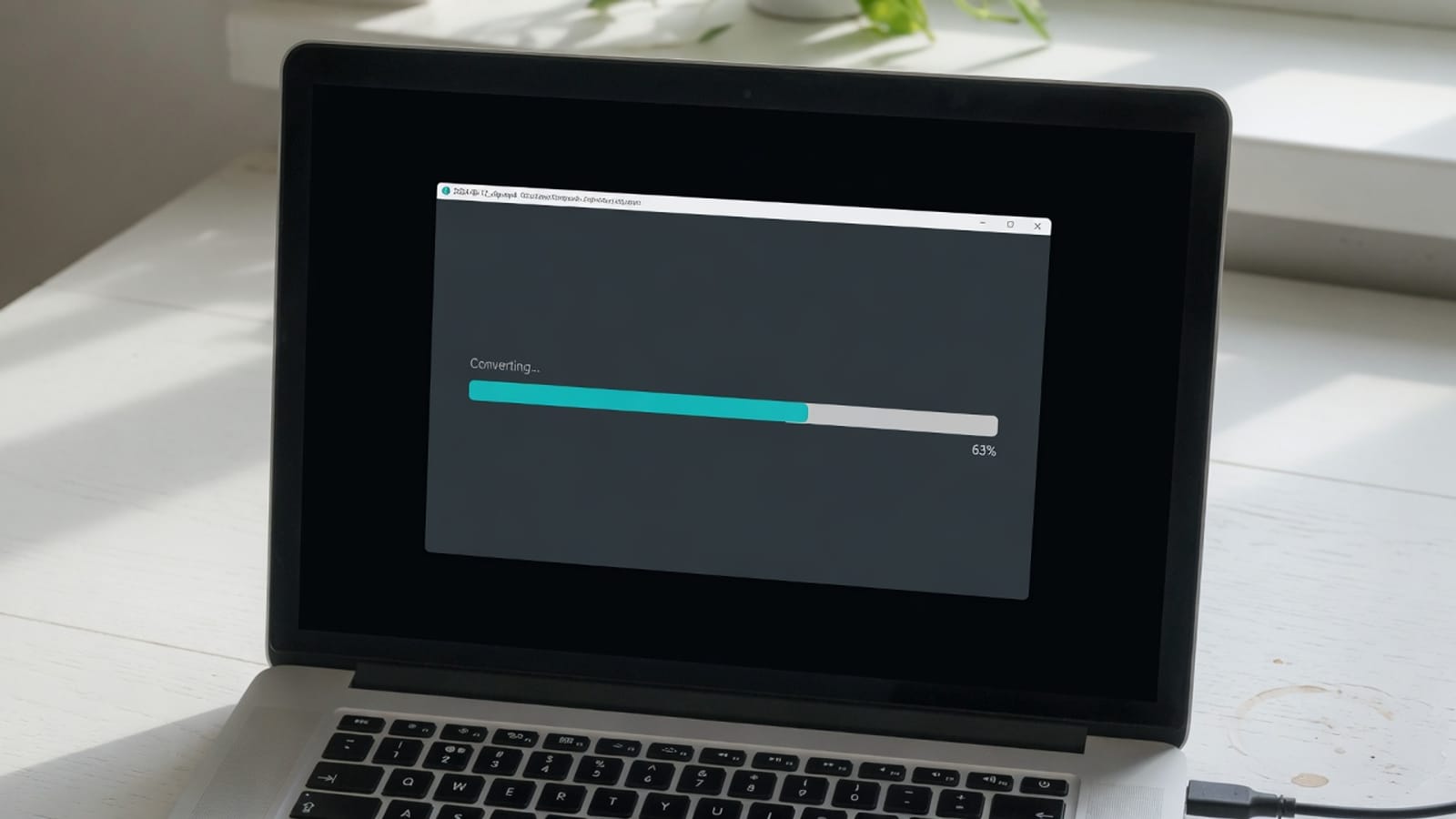
Step 02
Start local MP4 conversion.
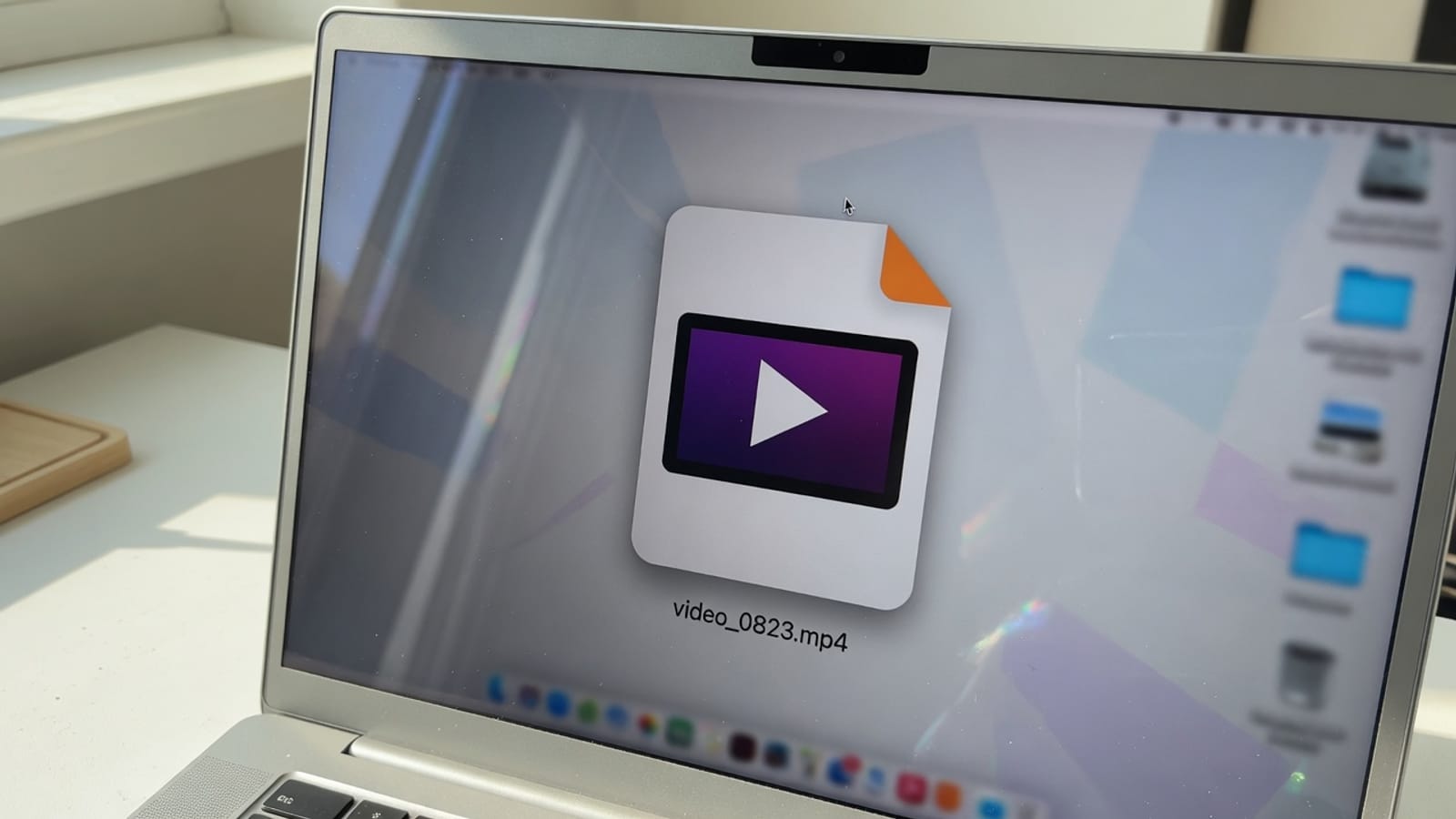
Step 03
Check duration, background, loop expectation and size.
What it is
Animated GIF files often use more bytes than a comparable video and are limited to indexed color. MP4 can be easier to upload, edit and play efficiently. GIF to MP4 converter on this page means selecting a file you already have permission to use, completing the job locally, and downloading an H.264 MP4 video. The GIF is accepted as local input and the media pipeline decodes its animation frames before encoding H.264 video into MP4.
Smaller web delivery: Replace a heavy GIF with video where MP4 playback is supported. Social uploads: Use an MP4 when the platform handles video better than GIF. Editing workflows: Bring an animation into software that expects video. Presentation playback: Use a standard video element instead of image animation. These are distinct reasons to GIF to MP4; they are not promises that every codec or file size will work on every device.
When MP4 is better
Many editors and mail clients handle a short MP4 more calmly than a 20 MB GIF.
Size
This conversion is the right click when a chat GIF stalls on download.
Quality
If you still have the original video, start from that. GIF to MP4 cannot restore lost color.
Silent
There was never a voice track. Add audio in an editor if you need it.
Then compress
A long GIF can still produce a large MP4. Compress video if a messenger rejects it.
Use cases
Replace a heavy GIF with video where MP4 playback is supported.
Use an MP4 when the platform handles video better than GIF.
Bring an animation into software that expects video.
Use a standard video element instead of image animation.
Quality
MP4 can preserve motion efficiently, but transparency is not guaranteed and the exported video does not behave exactly like an image element. Compare background and loop behavior. Complex or unusual GIF timing may be interpreted by the decoder. The current tool does not expose loop count, background color or frame-duration controls. A local browser tool cannot make lossy re-encoding mathematically lossless. Keep the master file, compare motion and audio after export, and change one setting at a time if the first result is not suitable.
Keep GIF when image embedding and automatic infinite looping are essential. Use MP4 when smaller delivery, video controls or editing compatibility matter more. A desktop editor remains the better choice for multi-track timelines, frame-accurate finishing, color work, subtitles, or archival masters. CompressVideo is intended for a focused GIF to MP4 job where a quick local result matters more than a full editing suite.
Privacy
The media path is local by design. Your file becomes an in-memory or temporary on-device input for browser media APIs, then the finished an H.264 MP4 video is offered as a download. No account or cloud-drive password is requested. Close the tab after downloading when you use a shared computer, and follow workplace policy when a browser tool is not approved for confidential material.
Complex or unusual GIF timing may be interpreted by the decoder. The current tool does not expose loop count, background color or frame-duration controls. If the job fails, first try a current desktop Chrome or Edge build. Next, close memory-heavy tabs, shorten the source, or use a smaller resolution. An H.264/AAC MP4 is the most dependable fallback input for video workflows. A retry cannot fix a codec the browser cannot decode, so repeated failures with the same file usually require a compatible source export.
Practical notes
1. Select an animated GIF, not a renamed static image. 2. Start local MP4 conversion. 3. Wait for frame decoding and H.264 encoding. 4. Download and play the MP4. 5. Check duration, background, loop expectation and size. The output is an H.264 MP4 video. Review the file name, extension, playback, duration, dimensions, sound, and size before sharing it.
The GIF is accepted as local input and the media pipeline decodes its animation frames before encoding H.264 video into MP4. MP4 can preserve motion efficiently, but transparency is not guaranteed and the exported video does not behave exactly like an image element. Compare background and loop behavior. This is the practical difference between a real browser media tool and a page that only renames a file extension. The result is produced from decoded media samples or a validated conversion path, subject to the codec support exposed by the browser and device.
Return to the tool above when you are ready to GIF to MP4. Use the source master, choose the smallest change that completes the task, and GIF to MP4 once. If the result is wrong, adjust the relevant setting instead of repeatedly re-encoding the same output. This keeps the GIF to MP4 workflow understandable and limits avoidable quality loss.
FAQ
Often, because H.264 compresses motion more efficiently, but the exact result depends on frames, dimensions and duration.
Not by itself. The player or HTML video element must be configured to loop.
It is not guaranteed in the MP4 output. Test transparent source areas against the intended background.
The pipeline may accept it, but the result would be a still video and offers little benefit.
Yes. The animated GIF-to-MP4 conversion workflow is free and does not require an account. Processing uses your browser and the download is available when the local job finishes.
No. The GIF to MP4 job reads the selected file with browser media APIs and does not send it to an encoding server. Analytics must not include file contents, names, frames, audio, or exported media.
Desktop Chrome or Edge is the safest choice for GIF to MP4 because codec support depends on WebCodecs. Complex or unusual GIF timing may be interpreted by the decoder. The current tool does not expose loop count, background color or frame-duration controls.
No. The GIF to MP4 output has no CompressVideo stamp, and the completed download is not placed behind a subscription prompt.
Mobile Safari or Chrome can open a file already on the device. Desktop Chrome or Edge is more reliable for long or high-resolution sources because WebCodecs coverage and memory are stronger there.
Complex or unusual GIF timing may be interpreted by the decoder. The current tool does not expose loop count, background color or frame-duration controls. Start with an H.264 MP4 when a special camera file fails. A remote URL or social-network link is not fetched.
Drop a local file, set the output, and download. Nothing is uploaded.
Convert GIF to MP4