
Social ratios, centered
The crop rectangle is computed from the source size so Stories, posts and landscape players get a predictable frame.
Choose a centered aspect ratio and preview the exact source rectangle.
Why this crop
Crop video here is a centered aspect crop: 1:1, 9:16, 16:9 or 4:5. It is for social framing, not freehand boxing.
The crop rectangle is computed from the source size so Stories, posts and landscape players get a predictable frame.
After the crop, you can still cap output height so the vertical clip is not a 4K portrait file.
The file is processed in this tab. There is no encoding server, account wall, or forced watermark on the download.
Keep the tab open until the file is ready, then play the result before deleting the source master.
How to crop video
The crop rectangle is computed from source dimensions and the chosen ratio, centered in the frame, then applied before optional downscaling. The current interface does not provide a draggable free-position box. Start with the original file instead of a copy that has already been re-encoded. Follow the steps below, keep the tab open while progress is moving, and play the downloaded result before deleting the source. This crop video workflow does not accept a remote video URL and does not fetch media from YouTube, TikTok, cloud drives, or social accounts.
Step 01
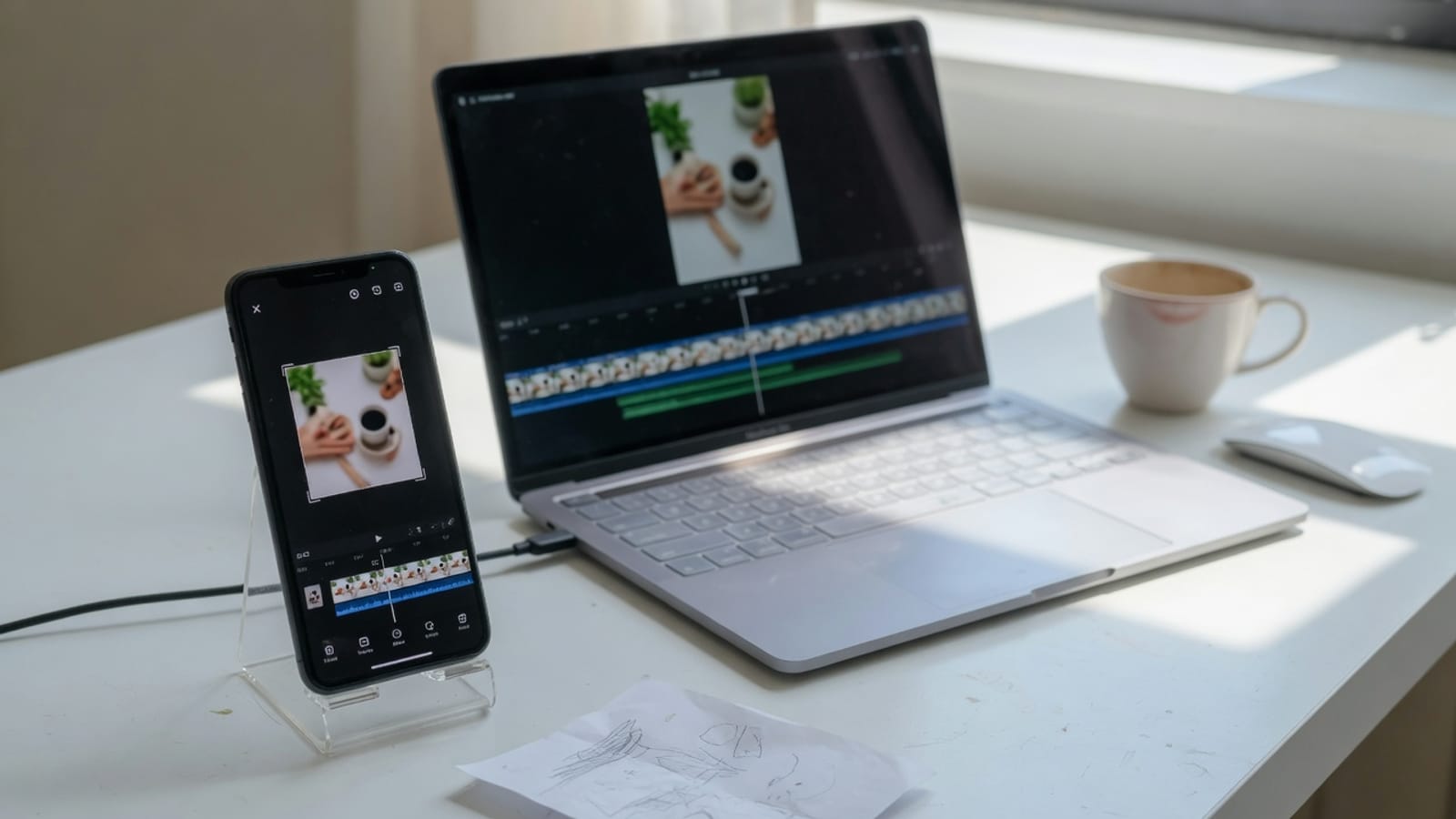
Select a video and wait for dimensions.
Step 02
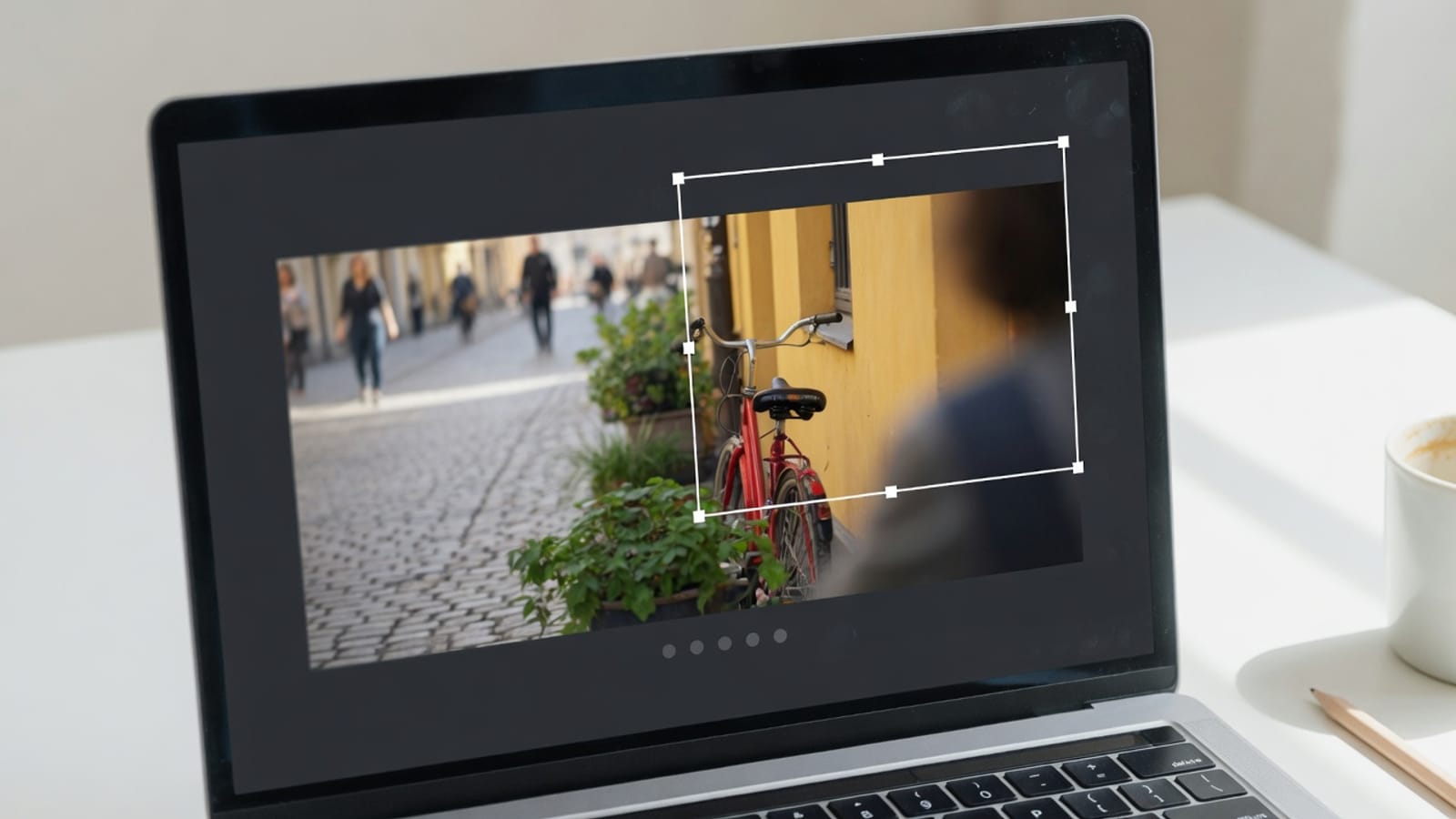
Preview the source in the crop panel.
Step 03
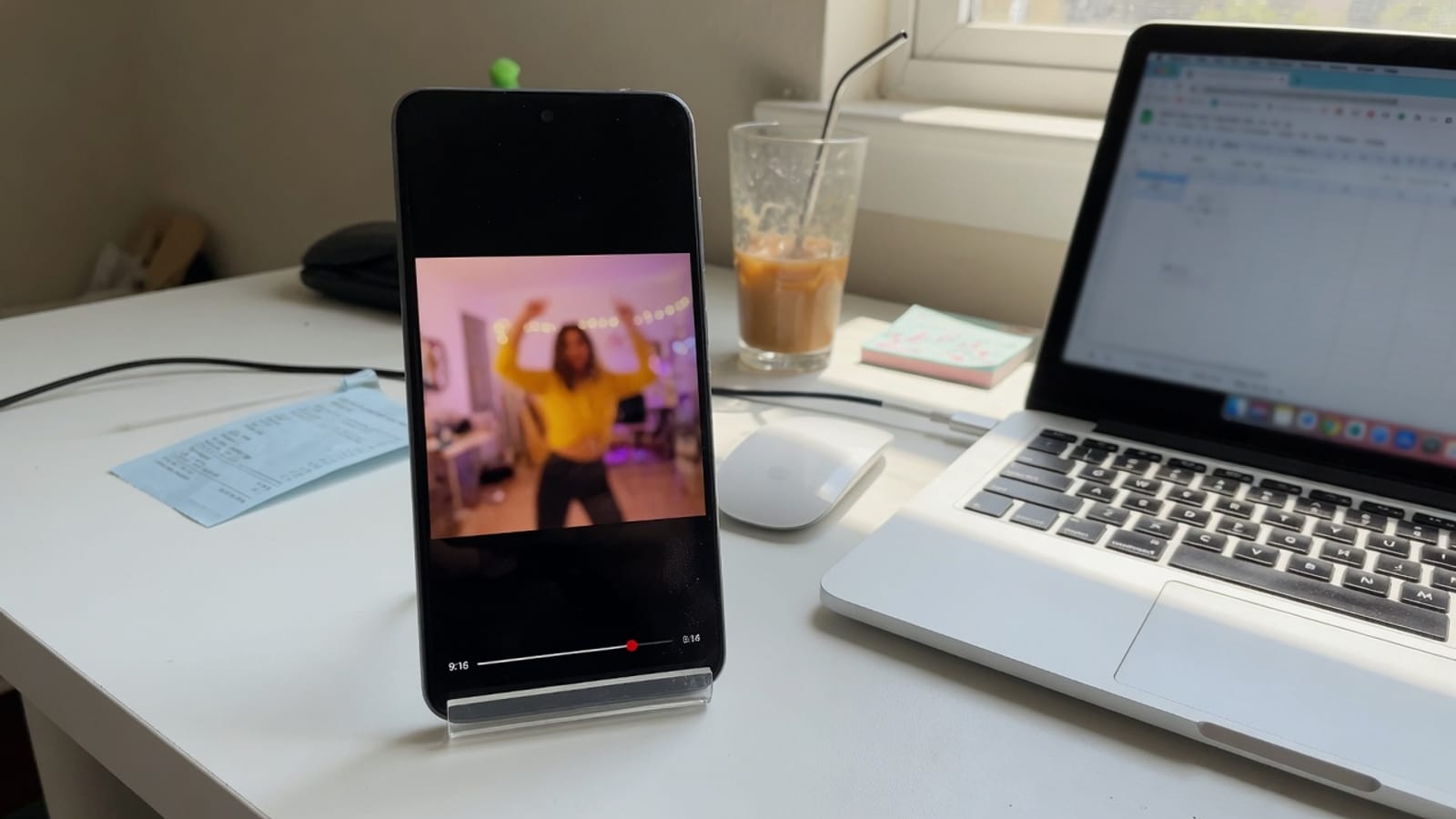
Export and inspect every edge of the result.
What it is
This cropper reframes a clip to 1:1, 9:16, 16:9 or 4:5. It shows the calculated source rectangle before export so you can see how much width or height will be removed. crop video online on this page means selecting a file you already have permission to use, completing the job locally, and downloading an MP4 containing the centered crop area. The crop rectangle is computed from source dimensions and the chosen ratio, centered in the frame, then applied before optional downscaling. The current interface does not provide a draggable free-position box.
Vertical social clips: Create a centered 9:16 frame from wider footage. Square posts: Use 1:1 when the main subject already sits near center. Portrait feeds: Use 4:5 for a taller feed composition. Remove edge clutter: Exclude unwanted borders when a centered cut is sufficient. These are distinct reasons to crop video; they are not promises that every codec or file size will work on every device.
Framing
9:16 fills Stories and Reels. 1:1 sits in feeds. 16:9 remains the default for YouTube-like players. Crop video does not move the subject off-center.
9:16
Use 9:16 when the destination is a full-screen phone story. Keep faces near the center before you crop video.
1:1
1:1 is the safe square. It discards equal sides from a landscape source rather than stretching.
16:9
16:9 from a taller source removes top and bottom. Check titles and watermarks after the crop.
4:5
4:5 is a common in-feed portrait that is less aggressive than 9:16. Preview the crop plan before you run.
Use cases
Create a centered 9:16 frame from wider footage.
Use 1:1 when the main subject already sits near center.
Use 4:5 for a taller feed composition.
Exclude unwanted borders when a centered cut is sufficient.
Quality
Cropping discards pixels outside the rectangle and re-encodes the kept area. Choose Source crop to retain its calculated resolution, or cap output height when a smaller delivery file is useful. Metadata must expose valid width and height. Subjects near an edge may be cut because the crop is centered and cannot be repositioned. A local browser tool cannot make lossy re-encoding mathematically lossless. Keep the master file, compare motion and audio after export, and change one setting at a time if the first result is not suitable.
Crop changes composition; resize keeps the complete composition and changes dimensions. A full editor is required when the subject needs manual tracking or an off-center crop. A desktop editor remains the better choice for multi-track timelines, frame-accurate finishing, color work, subtitles, or archival masters. CompressVideo is intended for a focused crop video job where a quick local result matters more than a full editing suite.
Privacy
The media path is local by design. Your file becomes an in-memory or temporary on-device input for browser media APIs, then the finished an MP4 containing the centered crop area is offered as a download. No account or cloud-drive password is requested. Close the tab after downloading when you use a shared computer, and follow workplace policy when a browser tool is not approved for confidential material.
Metadata must expose valid width and height. Subjects near an edge may be cut because the crop is centered and cannot be repositioned. If the job fails, first try a current desktop Chrome or Edge build. Next, close memory-heavy tabs, shorten the source, or use a smaller resolution. An H.264/AAC MP4 is the most dependable fallback input for video workflows. A retry cannot fix a codec the browser cannot decode, so repeated failures with the same file usually require a compatible source export.
Practical notes
1. Select a video and wait for dimensions. 2. Preview the source in the crop panel. 3. Choose 1:1, 9:16, 16:9 or 4:5. 4. Choose source crop, 1080p, 720p or 480p height. 5. Export and inspect every edge of the result. The output is an MP4 containing the centered crop area. Review the file name, extension, playback, duration, dimensions, sound, and size before sharing it.
The crop rectangle is computed from source dimensions and the chosen ratio, centered in the frame, then applied before optional downscaling. The current interface does not provide a draggable free-position box. Cropping discards pixels outside the rectangle and re-encodes the kept area. Choose Source crop to retain its calculated resolution, or cap output height when a smaller delivery file is useful. This is the practical difference between a real browser media tool and a page that only renames a file extension. The result is produced from decoded media samples or a validated conversion path, subject to the codec support exposed by the browser and device.
Return to the tool above when you are ready to crop video. Use the source master, choose the smallest change that completes the task, and crop video once. If the result is wrong, adjust the relevant setting instead of repeatedly re-encoding the same output. This keeps the crop video workflow understandable and limits avoidable quality loss.
FAQ
Yes, if a centered 9:16 crop keeps the subject. The tool does not automatically track an off-center person.
Yes. The exported MP4 contains only your selected crop and no site branding.
No. Cropping removes edges; resizing scales the complete frame.
No. The current version calculates a centered rectangle for the selected aspect ratio.
Yes. The centered video cropping workflow is free and does not require an account. Processing uses your browser and the download is available when the local job finishes.
No. The crop video job reads the selected file with browser media APIs and does not send it to an encoding server. Analytics must not include file contents, names, frames, audio, or exported media.
Desktop Chrome or Edge is the safest choice for crop video because codec support depends on WebCodecs. Metadata must expose valid width and height. Subjects near an edge may be cut because the crop is centered and cannot be repositioned.
No. The crop video output has no CompressVideo stamp, and the completed download is not placed behind a subscription prompt.
Mobile Safari or Chrome can open a file already on the device. Desktop Chrome or Edge is more reliable for long or high-resolution sources because WebCodecs coverage and memory are stronger there.
Metadata must expose valid width and height. Subjects near an edge may be cut because the crop is centered and cannot be repositioned. Start with an H.264 MP4 when a special camera file fails. A remote URL or social-network link is not fetched.
Drop a local file, set the output, and download. Nothing is uploaded.
Crop video now